In-class exercise
Brushes from your marks
Turn the marks on your mark sheet into three brushes, test them on a sheet, and try one on your poster. A brush made from your own hand matches the line you inked, and the ones that ship with Photoshop never will.
- Time
- In class, about an hour. Hand in before the break.
- Tools
- A scanner or your phone. Photoshop, Illustrator, or both.
Get the files
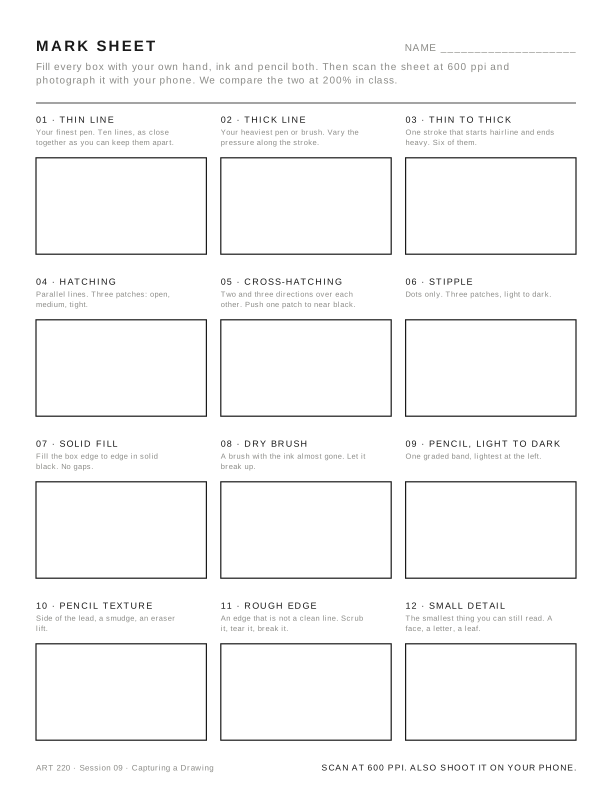
From session 9. If you lost yours, fill six boxes on scrap paper: a line, a dot, a dry scrub, a hatch, a smudge, a splatter.
Print at letter size, no scaling.
The one rule
Every brush comes from a mark you made by hand. No downloaded brushes, no brushes that come with the software.
Make three: one that draws a line (a dry stroke, a wobbly pen), one that lays down tone (a hatch, a scrub, a stipple), and one texture (a speck, a spray, a grain).
Scan and clean
- Scan two or three boxes from your mark sheet at 600 ppi, grayscale.
- Open the scan in Photoshop. If it opened in color, go to Image › Mode › Grayscale.
- Image › Adjustments › Levels (Cmd L). Drag the black input slider right until the ink is solid, and the white input slider left until the paper is pure white. Any gray left in the paper becomes a box around every stamp of the brush.
- Image › Image Size. Set Resolution to 300 with Resample on. A mark over about 1000 pixels across makes the brush lag.
- Save this as
marks-clean.psd. Illustrator uses the same file.
In Photoshop
Make the tip.
- Rectangular Marquee (M). Drag a box around one mark, with a little white around it.
- Edit › Define Brush Preset. Name it after its box, like
04 hatch. It appears at the bottom of Window › Brushes, already selected. - Cmd D to deselect. Repeat for the other two marks.
Set it up. Open Window › Brush Settings. Tick a section's box, then click its name to see its options.
| Setting | Line | Tone | Texture |
|---|---|---|---|
| Brush Tip Shape, Spacing | 5 to 10% | 40 to 70% | 100% or more |
| Shape Dynamics | Angle Jitter 0, Angle Control Direction | Angle Jitter 10 to 20%, Size Jitter 10% | Angle Jitter 100%, Size Jitter 30 to 50% |
| Scattering | off | off, or 30% | 150 to 300%, Both Axes, Count 2 |
| Transfer | Opacity Control Pen Pressure (tablet) | Opacity Jitter 20% | Opacity Jitter 30 to 50% |
With a tablet, set Size Jitter Control to Pen Pressure on the line brush. Without one, pen pressure does nothing: use the jitter numbers and click to stamp instead of dragging.
Keep the settings. They are lost the moment you pick another brush. Click the Create new brush icon at the bottom right of the Brush Settings panel (the square with a plus), name it, OK.
Use it.
- New layer (Cmd Shift N) right above the shape it shades. Never paint on the scan.
- Alt-click the line between the two layers to clip it, so nothing spills out of the shape.
- Paint in black or your darkest color.
[and]change the size. Shift-click draws a straight stroke. Set the layer to Multiply.
Save them. In Window › Brushes, Cmd-click your three brushes,
then the panel menu (☰) › Export Selected Brushes. Save as
lastname-brushes.abr. Brushes live in the app, not in your file. On
another computer: panel menu › Import Brushes, or double-click the .abr.
In Illustrator
Turn the mark into a shape.
- File › Place (Cmd Shift P)
marks-clean.psd. Click once to drop it. - With it selected, Crop Image in the Properties panel. Drag the handles in to one mark and press Enter.
- Window › Image Trace. Preset Black and White Logo. Open Advanced and tick Ignore White. Raise Threshold if thin strokes break, lower it if the marks fill in. Click Trace.
- Object › Expand. If the edge lost its roughness, undo, raise Paths toward 100%, lower Noise, and trace again.
- View › Outline (Cmd Y) to check: one mark, no white box behind it. Delete any white shape with the Direct Selection tool (A).
Make the brush. Open Window › Brushes and drag the shape into the panel.
| Art Brush, for a line | Scatter Brush, for tone and texture | |
|---|---|---|
| What it does | Stretches one long mark along the path | Stamps copies of a small mark along the path |
| Size | Width Fixed 100%, or Pressure with a tablet | Random, 50% to 120% |
| Length and spacing | Stretch to Fit Stroke Length, Direction arrow pointing the way you draw | Spacing Random 60% to 150%, Scatter Random −40% to 40% |
| Rotation | follows the path | Random −180° to 180°, relative to Path |
| Colorization | Tints | Tints |
Tints makes the brush take the stroke color, so one black brush works in all three of your colors. Name it after its box and click OK.
Use it.
- Paintbrush (B) with your brush picked in the panel. Or select any path and click the brush to apply it.
- Stroke weight scales it: 1 pt is the mark at its own size.
- To keep it inside a shape, select the shape, press Shift D (Draw Inside), and draw. Shift D again to go back.
Save them. Brushes panel menu › Select All Unused, delete, so only
yours are left. Then panel menu › Save Brush Library as
lastname-brushes.ai.
Test sheet and poster try
- A letter-size file with each brush drawn three ways: a straight stroke, a curve, and a patch filled in. Label each with its name and the box it came from.
- Photograph or scan your drawing as it stands and use one brush on one shadow or one background area. It does not need to be final.
Hand in
- The brush file:
lastname-brushes.abrorlastname-brushes.ai. - The test sheet as a PDF.
- The poster try as a JPEG.
Grade
Same day, on the 0, 2 or 3 scale. The six exercises share one grade and the lowest is dropped.
- 2: three working brushes from your own marks, a line, a tone and a texture, a labeled test sheet, and one tried on your poster.
- 3: all of that, and the brushes look like your drawing: no gray box around the stamps, repeats that do not line up, and the texture sits where the poster needs it.
- 0: not handed in, or brushes that did not come from your own marks.
After
Keep the brush file. It goes on every computer you work on for the rest of the project. Thursday the drawing is due finished and we scan it in class, and your brushes come back for shading and texture when color goes under the line.