SESSION 16
10.21.26

Your Brand System in Figma
A Figma file with every shadcn/ui component, where your tokens decide how everything looks.

Workhorse Collective

NameAbraham GarciaEmailabe@wrkhrs.co

ART 418 · Fall 2026

MeetsMon + WedTodaySession 16 · 10.21.2026
Workhorse wrkhrs.co

What the template is.Every component a website or app needs, already built, and all of them take their colors and fonts from a short list of tokens. You change the tokens, and the whole file becomes your brand.

Inside the file
What it gives you
Your tokens
Four colors, two fonts, sizes and spacing, with the same names as 05-tokens in your repository
Components
Every shadcn/ui component, from Accordion to Tooltip, plus the new ones for chat and AI products
Blocks
27 whole screens from shadcn/ui: a dashboard, 16 sidebar layouts, 5 logins, 5 signups
Help
A yellow note on every page that says what the page is for, what to avoid, and one thing to try

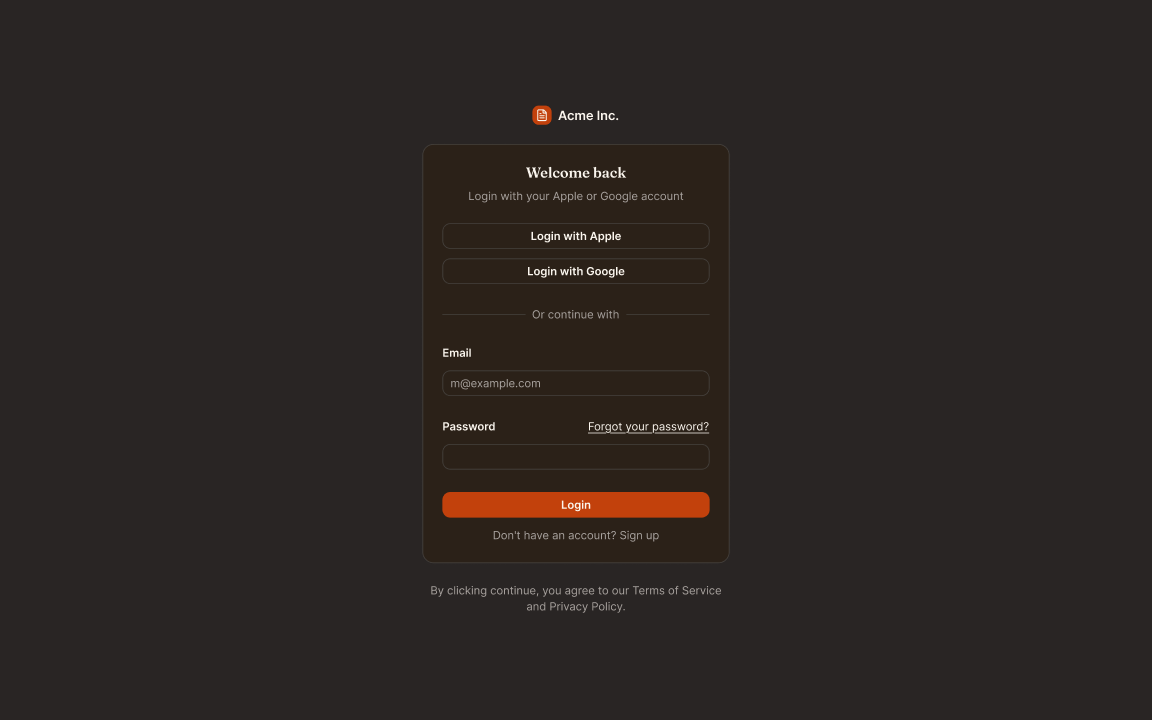
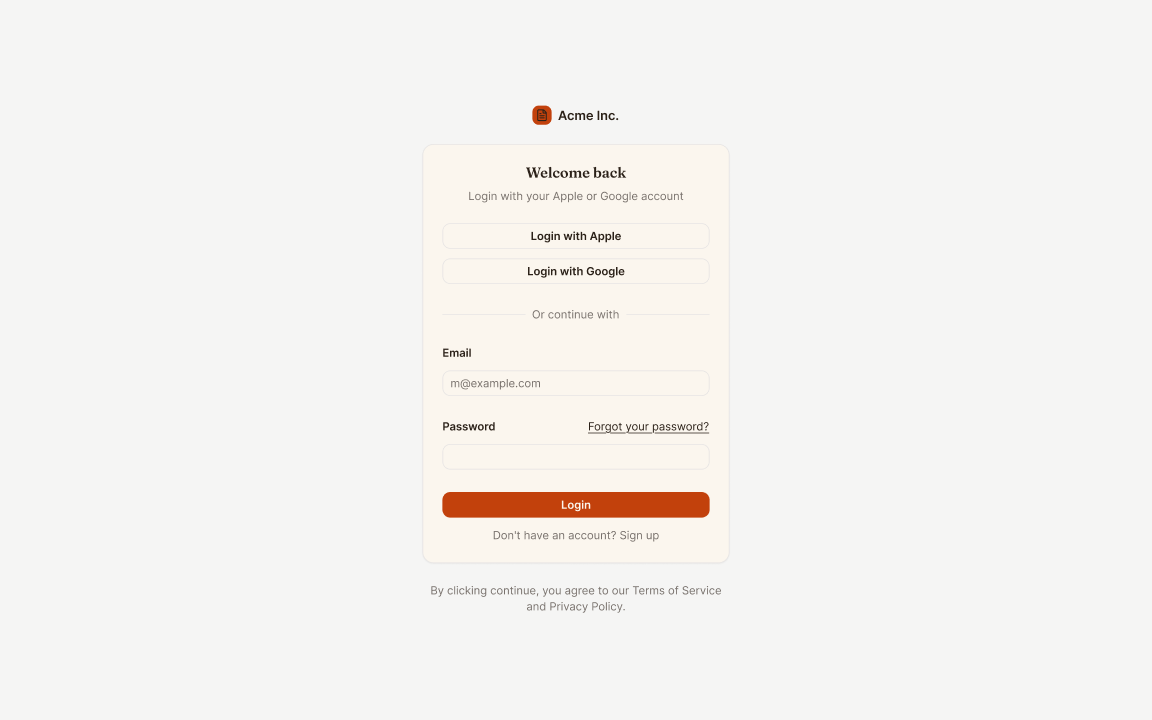
Change four colors and two fonts, and every screen changes.The same login screen with the placeholder tokens, then with test values, then in dark mode. Nobody redrew anything.
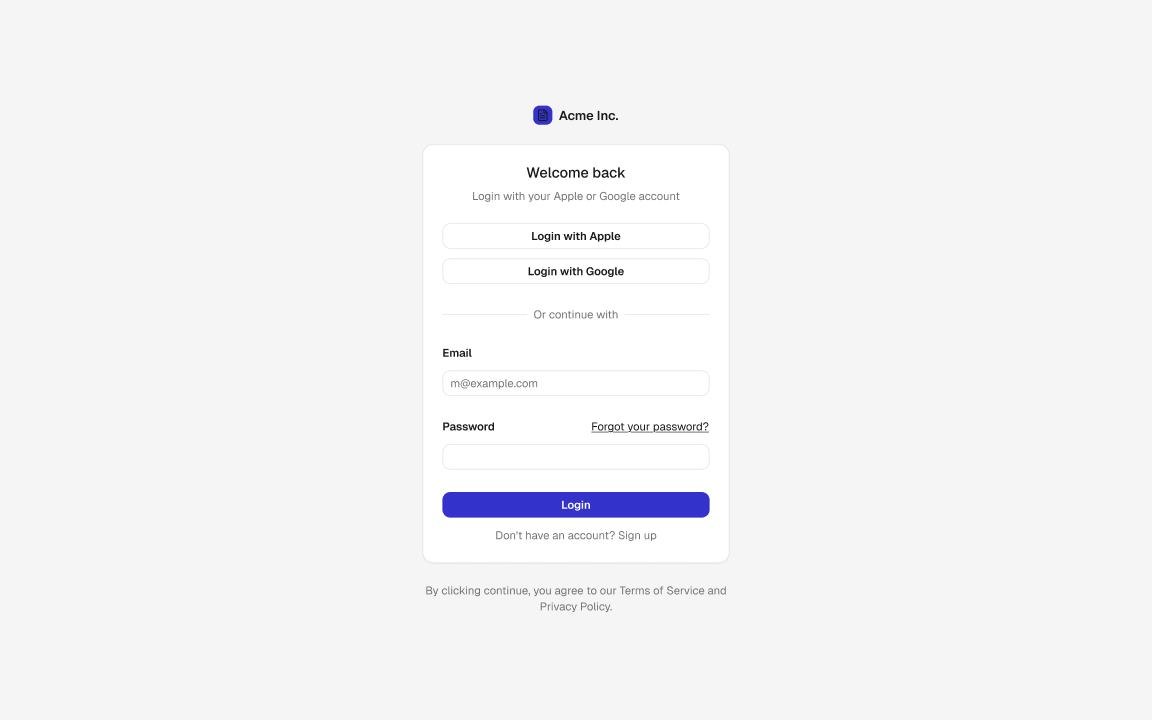
Login screen with the placeholder blue tokens
Placeholder tokens, the way the file arrives
The same login screen with cream, brown and orange tokens
Test values: four colors, Fraunces and Inter, a warm gray
The same login screen in dark mode
The same values, with the frame switched to Dark

Your tokens live on one page.

  1. The same names as your repository.color/ink, color/surface, color/action, color/alert, font/display, font/text, and the sizes and spacing from 05-tokens.
  2. Every swatch on the page reads from a token.When you change a value, the page changes too, so this is the quickest way to check that your colors work together.
  3. Each color has one job.Action is the one thing you want the reader to do. Alert is only for errors and warnings.
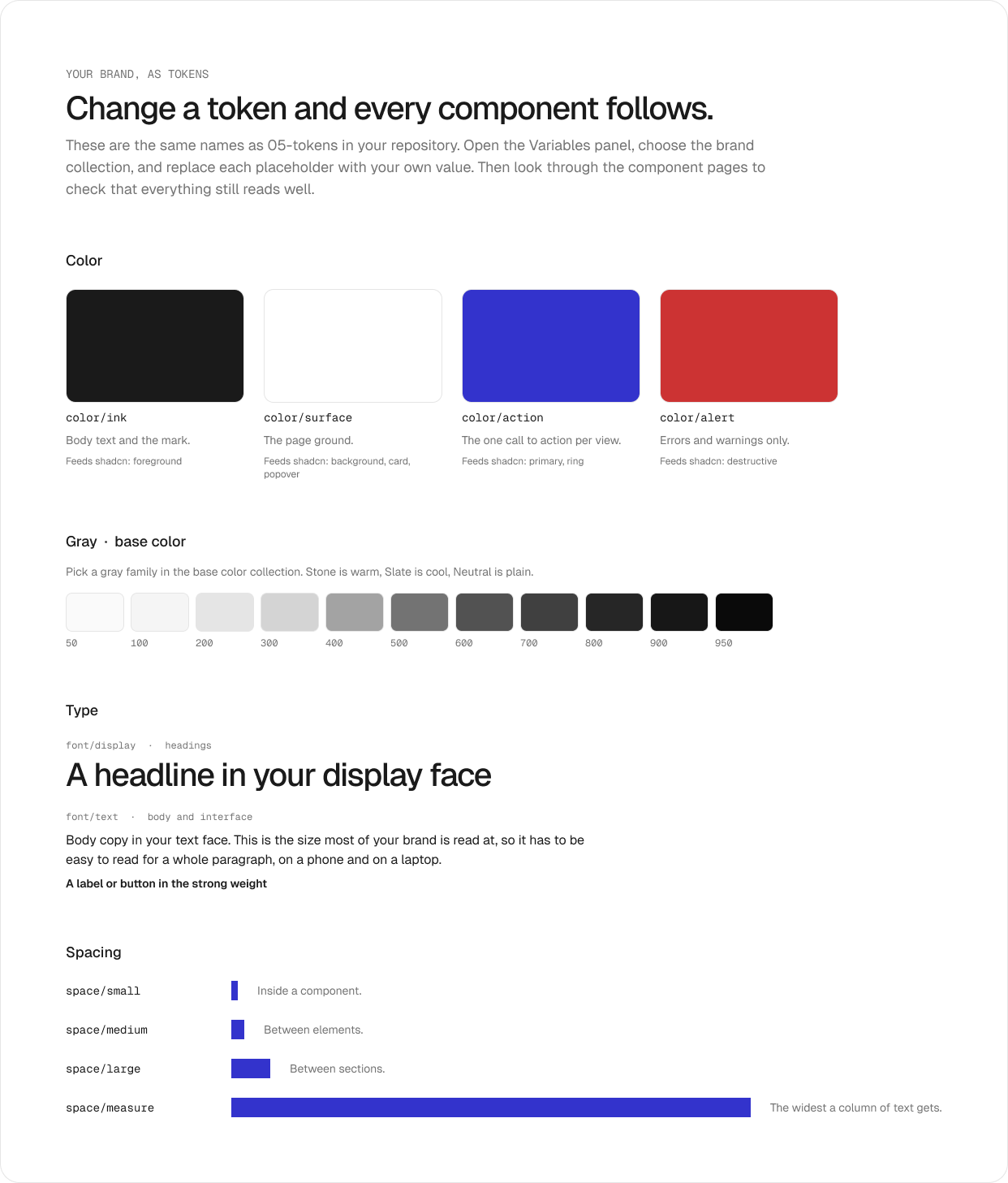
The Your brand page in the Figma file

Make it yours, in this order.

  1. Duplicate the file into your drafts.Name the copy after your brand.
  2. Put in your tokens.Click an empty part of the canvas, open Local variables in the right panel, and choose the brand collection.
  3. Set your fonts.Type the font names exactly. The weight names have to match the font, too: Geist says SemiBold, Inter says Semi Bold.
  4. Pick your gray.In the base color collection, drag a gray family to the first column. Stone is warm, Slate is cool.
  5. Try dark mode.Select a frame and set theme to Dark under Appearance.
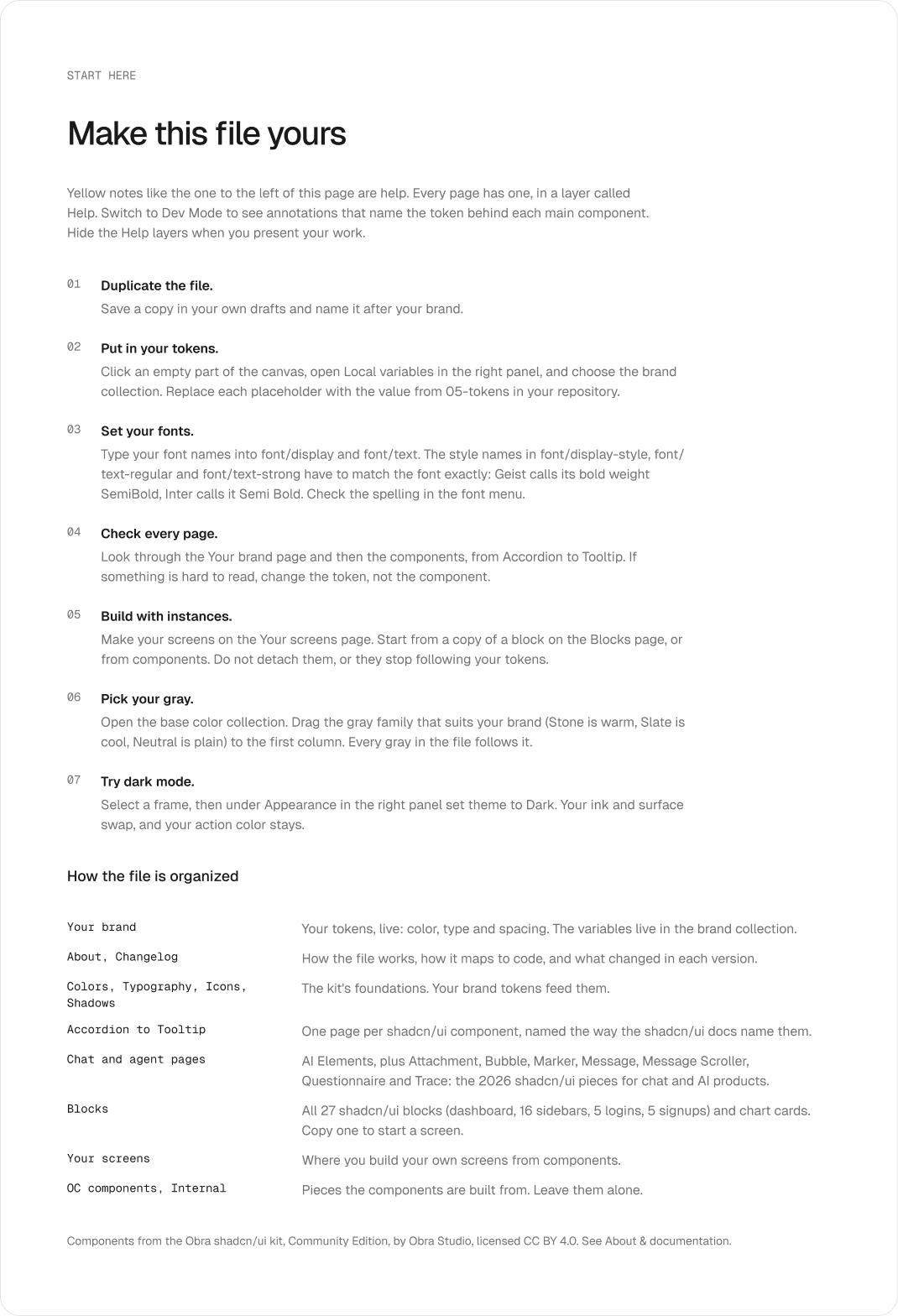
The Start here page in the Figma file

Every page has a yellow help note.

  1. What it is.What the page is for, in a sentence or two.
  2. Avoid.The most common mistake on that page.
  3. Try this.One small thing to do with your own brand.
  4. Hide them when you present.Each note sits in a layer called Help, to the left of the page.
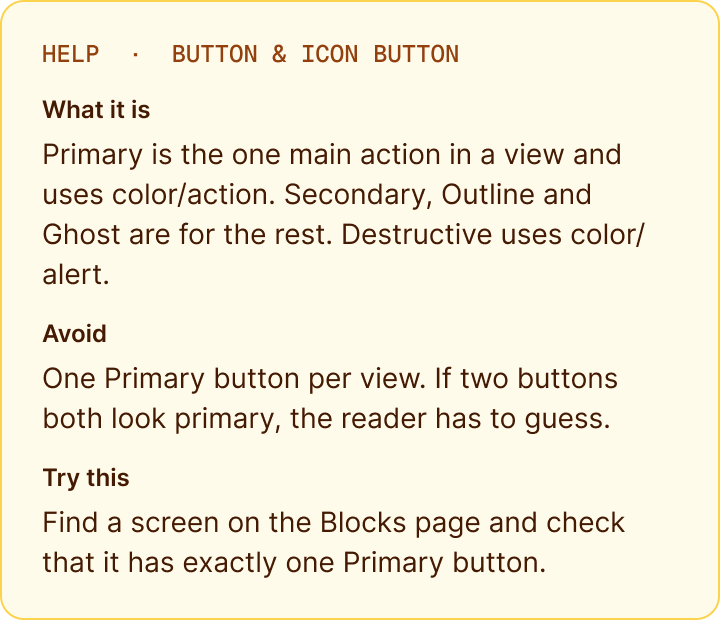
A help note from the Button page

Start your screens from a block.Copy a block to the Your screens page, then replace Acme Inc. and the placeholder words with your brand.
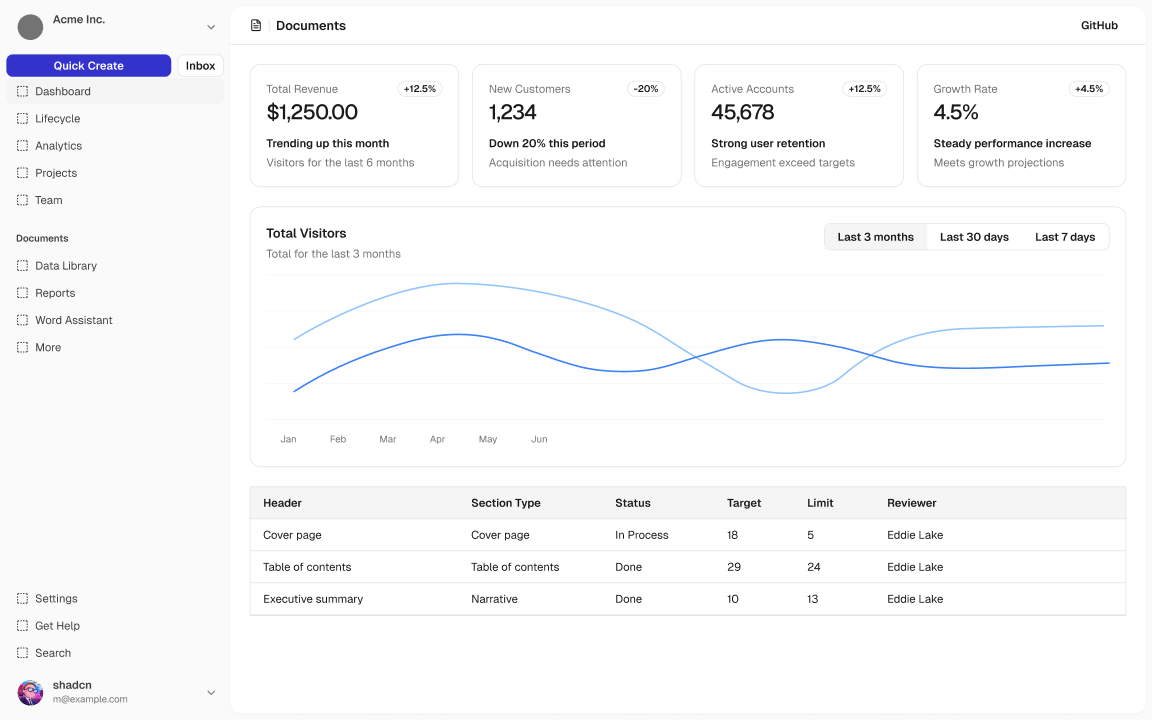
The dashboard-01 block
dashboard-01, one of the 27 blocks, built from the file's own components

Three rules for working in the file.

Rule
Why
Change the token, not the component
If a button looks wrong with your brand, the fix belongs in the brand collection, so it reaches every button at once.
Do not detach instances
A detached button stops following your tokens. Change its text and options in the right panel instead.
One primary button per view
Your action color marks the one thing you want the reader to do. Two of them make the reader guess.
Part 2

Put your system to workOnce your tokens are in, the file can make three kinds of things: screens in this file, screens in any other Figma file, and working prototypes in Figma Make.

Three ways to use your system.

Where
How
What you need
1. Screens in this file
Copy a block to Your screens and change the words and pictures to your brand. Everything stays linked to your tokens.
Any Figma account
2. Screens in your other files
Publish this file as a library. Then turn it on in any other file from the Assets panel, and your components and tokens show up there.
The file in a team project, not in your drafts
3. Working prototypes in Figma Make
Give Make one of your screens, your tokens and your rules, and ask it to build a version you can click through.
Figma Make, which uses AI credits from a monthly allowance

Publish your file as a library.Do this once your tokens are in. Every new file you make can then use your brand's components.

  1. Move the file into a team project.Files in your drafts cannot be published. Drag your copy into a project in your team.
  2. Publish it.Open the Assets panel, click the book icon for Libraries, and click Publish next to this file.
  3. Turn it on in a new file.In any other design file, open the same Libraries window and switch on your brand's library.
  1. Change it here, then publish again.When you change a token in this file, publish again. Every file that uses the library gets an update to accept.
  2. Name it after your brand.The library takes the file's name, so name the copy after your brand before you publish.

Build a working prototype in Figma Make.This way works on every account: you hand Make a screen, your tokens and your rules in the prompt.

  1. Make the screen first.Finish one screen on Your screens, in your brand, built from a block.
  2. Start a Make file.In Figma, create a new Figma Make file.
  3. Attach the screen.In the prompt box, click +, choose Add context, and paste a link to your frame.
  4. Attach your tokens and rules.Click + again, choose Upload files, and add 05-tokens/tokens.css and 04-brand/rules.md from your repository.
  1. Ask for one screen at a time.For example: "Build this sign-in screen as a working prototype. Use only the colors and fonts in tokens.css, and follow every rule in rules.md."
  2. Check it against your system.Compare the result with your Your brand page. If Make used a color that is not one of your tokens, tell it which token to use instead.

Your rules become Make's guidelines.Every Make file has a guidelines file that Make reads before each prompt. Paste your rules there, and Make follows them on every screen in that file.

  1. Open the code view in your Make file.Find the guidelines folder and open Guidelines.md.
  2. Name your tokens first.List the tokens Make may use, and say that nothing else is allowed.
  3. Then paste your rules.The Do and Because parts from rules.md are what Make needs most.
  4. Say what not to do.Figma's own advice is that the don'ts matter as much as the tokens.
# Guidelines

Use only these colors from tokens.css:
--color-ink, --color-surface,
--color-action, --color-alert.
Do not invent new colors.

Headings use --font-display.
All other text uses --font-text.

--color-action is for the one main
button on a screen. Never use it
as a page background.

--color-alert is only for errors.

If your account has Make kits.A Make kit packs your library's tokens and your guidelines together, so every new Make file starts in your brand. Figma offers kits to Full seats on paid plans, so some of you will not see the option. The attach method on the earlier slide does the same job by hand.

  1. Publish your library first.A kit can only take styles from a published library.
  2. Create the kit.In a new Make file, click Settings, choose Create a kit, then Assemble your kit, and add your library.
  3. Write the guidelines.The kit makes an empty Guidelines.md. Fill it the same way as the last slide.
  1. Test, then publish the kit.Ask Make for one screen, fix what it gets wrong, then click Publish kit. The kit has to be in a team folder, not your drafts.
  2. Use it.In any new Make file, click Select a Make kit in the prompt box and choose yours.

AI Tools With Student Access.

Tool
What students get
Sign up
GitHub Student Developer Pack
Free GitHub Pro and Copilot Student for verified students, plus partner tools. Copilot Student sign-ups paused in April and reopened gradually from June.
education.github.com/pack
Google AI Pro (Gemini)
A free year for US college students 18 and over, with a school email. Claim by Dec 31, 2026; it bills $19.99 a month after the year unless you cancel.
gemini.google/students
Figma Education
The Professional plan free for verified students, including Figma Make and monthly AI credits. Reverify each year.
figma.com/education
NotebookLM
Free. Load your readings and sources; it answers from those documents and cites them.
notebooklm.google.com
Claude
The free plan does not expire. No individual student discount; schools can join Claude for Education.
claude.ai · anthropic.com/education
Cursor
Free Hobby tier. Its free year of Pro for students closed to new sign-ups in June 2026.
cursor.com/students
Notion
Plus plan free with a school email.
notion.com/product/notion-for-education
CHECKED SEP 30, 2026 · STUDENT OFFERS CHANGE OFTEN: READ THE TERMS, AND SET A REMINDER BEFORE ANY FREE YEAR STARTS BILLING Workhorse
Today

Open the file and put in your tokensThe link is in the Blackboard post for today. Duplicate it, follow Start here, and check your Your brand page in light and in dark before you leave.